
In-depth architectural analysis and production engineering insights for Pdq Inventory Agent High CPU Usage: Efficient Solutions and Best Practices.
📑Table of Contents (23 Sections)Tap to Jump ▾
Table of Contents
Network administrators often face the challenge of maintaining optimal performance within their IT environments, especially when it comes to managing the vast number of devices connected to a network. PDQ Inventory is a systems management tool used to track and organize hardware, software, and Windows configuration data for networked computers. While PDQ Inventory is a powerful asset for IT professionals, instances of high CPU usage by the PDQ Inventory Agent can occur, impacting the overall performance of the system it runs on.

The PDQ Inventory Agent is designed to assist in scanning and collecting data from computers, even those not constantly connected to the network. However, users may observe that at times the agent causes an unexpected strain on system resources. High CPU usage can lead to slowdowns, which may affect network efficiency and productivity. Identifying the reasons behind this behavior and implementing solutions is crucial for ensuring that PDQ Inventory operates smoothly without overtaxing system resources.
Understanding PDQ Inventory Agent

The PDQ Inventory Agent plays a critical role in managing networked systems, providing real-time data which is essential for system administration. This includes information on CPU, RAM, and even graphics card specifications, offering insights necessary for asset management.
Architecture and Operation
The architecture of the PDQ Inventory Agent is designed to be lightweight and efficient, minimizing the impact on system resources. Upon deployment on a server, the agent regularly scans a computer and sends system data such as processor performance, RAM usage, and hardware details back to Admin Arsenal's PDQ Inventory. This ensures that the inventory collections remain up-to-date, reflecting the current state of hardware and software on the network.
Moreover, the PDQ Inventory Agent operates in the background, allowing system administrators to view the computer window without interrupting the end-user's activities. "Customize this Grid" feature empowers the admin to tailor the display of information according to their monitoring needs with options to add or remove columns based on attributes such as system description or memory usage.
Components and Processes
The core components that enable the PDQ Inventory Agent to function include the processor which handles instructions, the RAM which provides working memory to execute tasks, and occasionally, the graphics card for visual-related tasks. The PDQ Inventory Agent's processes are designed to utilize CPU cycles efficiently without causing high CPU usage under normal conditions.
If an instance of high CPU usage arises, it can typically be traced back to specific processes such as PDQInventoryService.exe. Problems may arise when this service consumes a disproportionate amount of processor time, an issue documented and discussed within the PDQ community. System administrators are provided with guidelines for troubleshooting and resolving such issues, ensuring that their servers operate within acceptable performance thresholds.
Identifying High CPU Usage
PDQ Inventory, a system management tool used to track computer resources and software, must be configured properly to prevent high CPU usage. In this section, the focus will be on recognizing the symptoms of excessive CPU utilization and the methodologies for monitoring and measuring performance effectively.
Symptoms and Signs
High CPU usage in PDQ Inventory can manifest in several noticeable ways. Systems administrators might experience a sluggish response from the management console, or see that the PDQInventory Service is consuming a disproportionate percentage of CPU resources in Task Manager. In some instances, users have reported CPU spikes to 99%, with the service accounting for 93-95% CPU usage. These indicators suggest that PDQ Inventory settings or performance might be suboptimal, requiring attention.
Monitoring and Measuring
To effectively monitor CPU utilization, it is essential to employ tools like Task Manager, Performance Monitor, or PDQ Inventory's own logs to track real-time processor consumption. Performance can be influenced by a range of factors:
- PDQ Inventory's Performance Settings: Adjusting settings such as scan intervals or concurrent scans can significantly affect CPU load.
- Database Optimization: Ensuring the database is properly maintained and configured can alleviate unnecessary CPU strain.
- Processor Capacity: The capabilities of the servers' processors also dictate how well PDQ Inventory functions under load. If the hardware is underpowered for the demands placed by PDQ Inventory, this will inevitably lead to higher CPU utilization.
Monitoring these aspects regularly can help in maintaining optimal performance and prevent potential overutilization of system resources.
Optimizing PDQ Inventory Performance

When using PDQ Inventory, it's essential to tailor the configuration settings, manage resources effectively, and adhere to best practices to maximize performance and reduce high CPU usage.
Configuration Settings
PDQ Inventory offers configurable performance settings that directly impact how it interacts with system resources. In the Options menu, administrators can adjust settings to find a balance that minimizes resource usage without compromising functionality. For example, they can set the maximum number of concurrent scans, ensuring that scans are performed efficiently without overwhelming the server's RAM or CPU.
Resource Management
Effective resource management is crucial for PDQ Inventory performance. Administrators should monitor and allocate system resources such as CPU and RAM to meet PDQ Inventory’s operational demands. It is recommended to periodically review the PDQ Inventory service's CPU usage and adjust the deployment priority if high CPU usage is observed. Ensuring the machine hosting PDQ Inventory has sufficient resources can alleviate bottlenecks.
Best Practices
Following best practices laid out by Admin Arsenal ensures PDQ Inventory runs smoothly. It's important to regularly maintain the PDQ Inventory database to prevent performance degradation. Additionally, using the PDQ Deploy tool in conjunction with PDQ Inventory should be done thoughtfully, scheduling deployments during off-peak hours to minimize the impact on network and system performance.
By adhering to these focused strategies, they can optimize PDQ Inventory's efficiency and mitigate issues related to high CPU consumption.
Troubleshooting Common Issues

When tackling high CPU utilization issues with PDQ Inventory Agent, it is essential to narrow down the cause to effectively solve the problem. The issues often stem from software conflicts or hardware limitations that can affect the performance of the server where PDQ Inventory is installed.
Software Conflicts
Software that runs concurrently with PDQ Inventory can sometimes lead to increased CPU usage. It's crucial to check for any applications or background services that may be interacting negatively with PDQ Inventory. For example, conflicting security software or simultaneous deployments using PDQ Deploy might strain system resources.
- Identify: Use the task manager to monitor processes and observe any abnormal CPU spikes.
- Resolve: Temporarily disable other software to test if the CPU usage by PDQ Inventory decreases.
Hardware Limitations
PDQ Inventory and PDQ Deploy are robust systems that require sufficient RAM and processing power; hence, inadequate hardware can cause high CPU utilization. This especially holds true for servers managing large inventories or multiple deployments.
- Assess:
- CPU: Check if the server's processor meets the application's requirements.
- RAM: Verify that there is enough memory available to handle the workload.
- Upgrade: If the hardware is found lacking, consider upgrading the system's CPU or RAM to provide a more stable environment for PDQ Inventory.
Advanced Troubleshooting Techniques
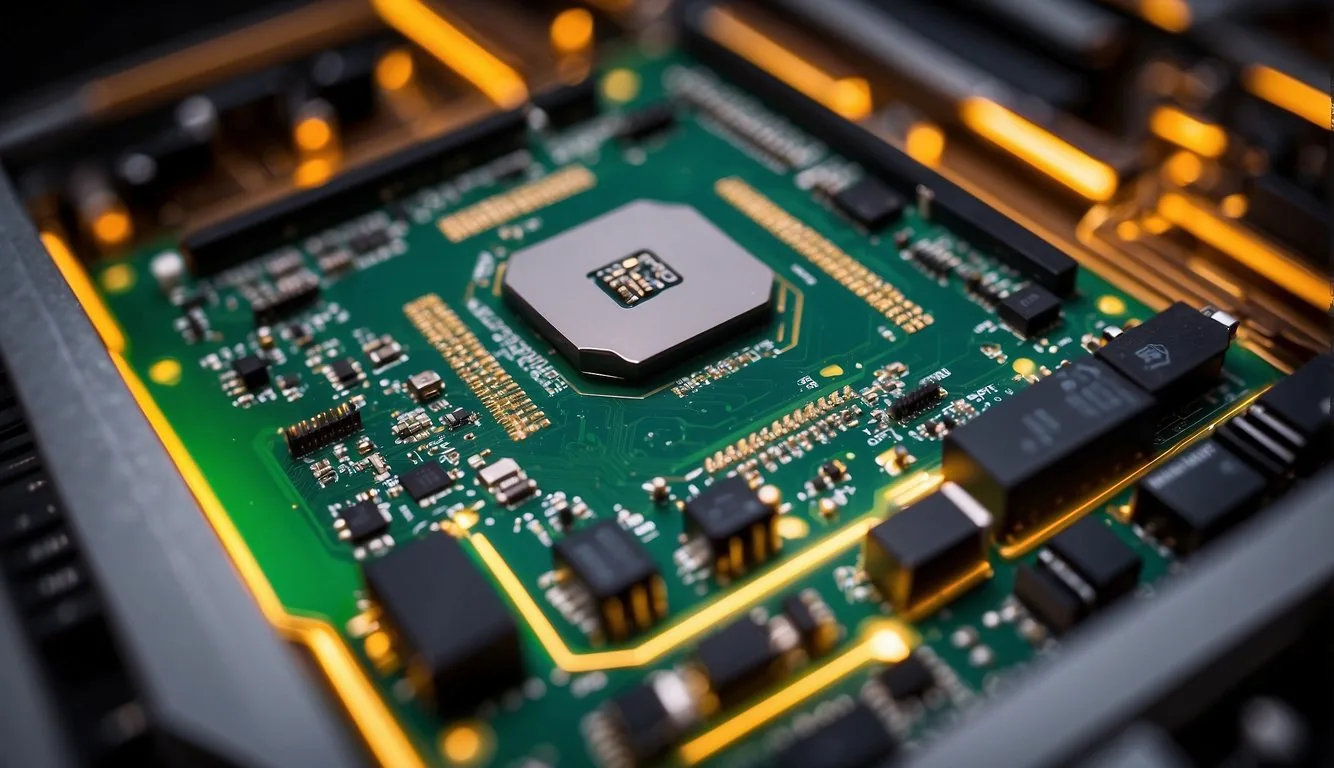
To effectively manage high CPU utilization within PDQ Inventory, advanced troubleshooting techniques are focused on systematic analysis and strategic network planning. These methods should provide clarity on underlying issues that may impact the performance of the scanner, database, and server resources.
Analyzing Logs
One of the immediate steps in troubleshooting PDQ Inventory is a detailed analysis of logs to pinpoint performance bottlenecks. Logs can reveal if the scanner process is encountering errors or excessive load periods, often highlighted by timestamps correlating with spikes in CPU usage. It's crucial to examine the verbosity level of logs, ensuring that they offer sufficient detail to assess the health of PDQ Inventory's operations.
- Log Location: Typically found in the
ProgramDatadirectory on the server hosting PDQ Inventory. - Tools: Use built-in or third-party log analysis tools to filter and search for relevant entries.
- Specifics to Look for: Repeated errors, warning messages related to database queries, or extensive scan durations that could indicate inefficient database performance.
Network Considerations
Network performance has a direct impact on PDQ Inventory's CPU utilization. If the network is congested or improperly configured, it can lead to excessive workload on the server as it struggles to communicate with clients or access resources.
Checklist for Network Optimization:
- Network Load: Assess the current network traffic and optimize it by scheduling scans during off-peak hours.
- Configuration Review: Verify that network hardware and settings are in an optimal state to support the demands of PDQ Inventory.
- Database Calls: Ensure that calls to the database are not congested through the network, which might increase the CPU load on the server.
By considering these advanced techniques, IT professionals can reduce high CPU utilization and improve the overall efficiency of PDQ Inventory.
Integrating PDQ Inventory with PDQ Deploy

Integrating PDQ Inventory and PDQ Deploy provides a seamless interface for managing deployments and ensuring performance optimization across your network. The Admin Arsenal tools work in tandem to enhance the deployment strategies and synchronization of updates.
Deployment Strategies
When integrating PDQ Inventory with PDQ Deploy, it allows for advanced deployment strategies that leverage the intelligence gathered by PDQ Inventory. Deployments can be targeted more effectively using dynamic collections, which contain computers that meet specified criteria. For example, an admin can create a collection of computers with an outdated version of software and use PDQ Deploy to update those specific machines.
- Performance Optimization: Efficient use of resources is crucial, and with the PDQ tools, one can schedule deployments during low-impact hours. This ensures minimal CPU load and avoids any performance bottlenecks that might arise from deploying updates during peak hours.
Synchronization
Synchronization between PDQ Inventory and PDQ Deploy ensures that inventory data is current and reflects the latest changes after deployments:
- Every time a deployment is made through PDQ Deploy, the PDQ Inventory is automatically updated, ensuring that admins have the latest data at their fingertips.
- This process helps maintain accurate collections within PDQ Inventory that can be used for future software deployments, reports, and administrative tasks.
By utilizing synchronization, there's a reduction in the overhead for admins and a boost to the overall efficiency of the software management life cycle.
Leveraging Community Resources

When addressing high CPU usage caused by PDQ Inventory Agent, community resources are invaluable. They offer real-world solutions and optimizations from seasoned PDQ users and the Admin Arsenal team that developed PDQ Deploy and PDQ Inventory.
Forums and User Groups
Professional and amateur IT administrators frequent the PDQ Deploy & Inventory forums. Users experiencing similar issues with PDQ Inventory Service causing high CPU usage often discuss their challenges and solutions here. These forums are a goldmine for troubleshooting tips, like noticing CPU spikes during inventory scans or zero computers being scanned, which could imply potential misconfigurations or bugs.
Blogs and Articles
The Admin Arsenal blog hosts a variety of articles that can help optimize PDQ Inventory performance. For instance, these resources suggest setting the best copy mode in PDQ Deploy or adjusting the performance settings to mitigate high CPU utilization. Utilizing these PDQ-specific guides can yield substantial improvements in system performance.
Instructional Videos
On platforms such as YouTube, instructional videos created by the PDQ team or its user community can provide visual guides on configuring and optimizing PDQ Inventory. From basic setups to advanced performance tuning, these videos can offer step-by-step instructions that might be more accessible for many users compared to text-based formats.

Written by Faisal Rafique
Senior Software Architect engineering scalable Next.js 15 web systems, 60fps Flutter mobile applications, and automated QA testing frameworks.
Have Technical Questions or Architecture Inquiries?
Leave a project inquiry or request an engineering consultation regarding this topic.